

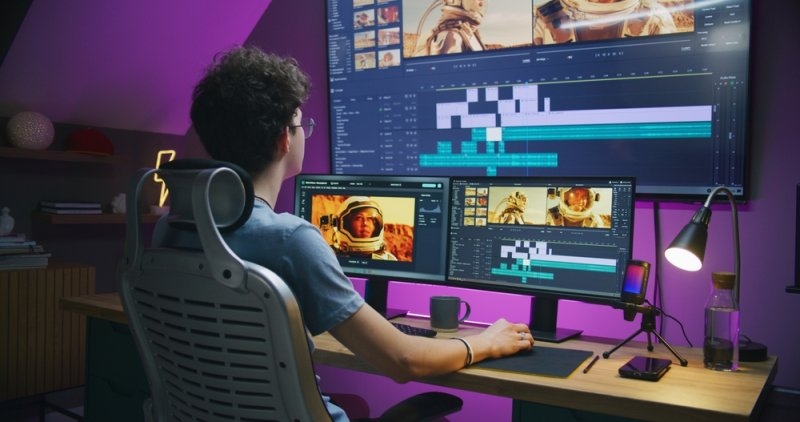
Editing videos sounds easy until you’re actually doing it. Cutting together clips, fixing sound, lining up captions, timing transitions, and making sure everything exports smoothly—it can be a lot. The right editing software really cuts down the stress, especially when it doesn’t force you to use super-complicated workflows.
There’s no one-size-fits-all solution here. A filmmaker, a YouTuber, a marketer, and someone posting short Reels all need different things. Some want to really dig into the details, others just want to finish fast.
This blog breaks down the top options—Premiere Pro, DaVinci Resolve, PowerDirector, Filmora, and CapCut—so you can pick what actually fits how you work.
The strongest video editing tools are not necessarily the ones with the longest feature list. The real question isn’t which editing software is most popular—it’s which one actually fits the way you work.
If you’re a professional video editor, you probably need advanced timelines, detailed audio controls, effects, color grading tools, and solid project management features. On the other hand, if you’re mostly creating content for social media, things like caption templates, quick resizing options, and fast export times matter a whole lot more.
| Tool | Best For | Main Strength | Learning Curve |
|---|---|---|---|
| Adobe Premiere Pro | Professionals | Full editing workflow | High |
| DaVinci Resolve | Editors and colorists | Color grading and post-production | High |
| CyberLink PowerDirector | Prosumer creators | Fast editing | Moderate |
| Wondershare Filmora | Beginners and marketers | Simple creative editing | Low |
| CapCut | Short-form creators | Fast social content | Low |
See? Just picking the “most popular” video editor might steer you wrong. The best tool depends on what you’re making, what you know, how fast you need to work, and how much control you want.
Don't Miss: Best Collaboration Tools for Teams Working from Home
Adobe Premiere Pro is still the heavyweight for pros. If you need full control over timelines, manage lots of layered media, play with complex audio, or want the most professional finish possible, this is the software you want.
Agencies, production studios, filmmakers, even serious YouTubers working on big projects rely on Premiere.
Premiere Pro works particularly well when editing involves many clips, multiple audio tracks, graphics, or demanding revisions. For example, an agency producing a 20-minute brand film can manage a much more detailed workflow than it could with a basic mobile editor.
The trade-off is obvious. It takes time to master.
DaVinci Resolve is among the most capable video editing tools for creators who care heavily about color grading and post-production. Its editing, visual effects, audio, and color capabilities are brought into one environment.
That makes it particularly useful for cinematic projects where the final look matters as much as the cut.
A travel film can have perfectly timed cuts yet still feel flat if the color is weak. Resolve gives video editors extensive control over color, contrast, tones, and visual consistency.
For creators producing films, documentaries, commercials, or polished YouTube videos, this depth can be worth the steeper learning curve.
Suggested Reading: Content Management System for Easy Website Management
CyberLink PowerDirector lands right in the middle. It’s strong enough for folks who want more control than entry-level editors but don’t want something overwhelming, either.
It fits people who need good-looking videos—think prosumers, small businesses, teachers, anyone churning out a lot of content—but also want to keep their workflow manageable.
A creator making weekly tutorials, product videos, or promotional clips can benefit from a workflow focused on speed. The software provides room for effects, transitions, titles, audio adjustments, and other editing tasks while keeping the overall process approachable.
That balance is its appeal.
Wondershare Filmora is a video editing software option aimed at creators who want useful editing features without a heavy professional interface. It works well for beginners, marketers, students, and small teams producing regular content.
It is especially practical when speed matters more than highly technical control.
Someone making a product review, tutorial, or YouTube video can start editing without first spending weeks studying an advanced timeline. Filmora keeps many common tasks accessible, which makes it easier to move from raw clips to a finished video.
That simplicity is not a weakness for the right user.
CapCut has become a popular video editing apps for creators producing short-form content. It focuses heavily on speed, mobile-friendly workflows, captions, effects, templates, and formats suited to social platforms.
For TikTok-style videos, Reels, Shorts, or quick promotional clips, that convenience can matter more than professional-grade controls.
If your main goal is putting out lots of videos fast—rather than making something so polished you could show it in a theater—using a video maker is just more practical.
Imagine a small business recording five short product clips in one afternoon. A fast workflow can get those clips captioned, resized, edited, and ready for publishing with less effort.
Different creators should judge video editing software against different requirements. A filmmaker may prioritize color and audio. A marketer may prioritize templates and turnaround time. A beginner may simply want an interface that makes sense.
So, here’s a simple way to decide:
There is no prize for using the hardest software.
Modern video creation tools have changed what small teams can produce. A marketer can record footage on a phone, edit it, add captions, create multiple aspect ratios, then publish without handing the project to a full production department.
That does not make professional software unnecessary. It simply means creators have more choices.
If you produce long-form interviews every week, Premiere Pro or DaVinci Resolve may justify the learning time. If you make daily social clips, CapCut could be more efficient. For occasional business videos, Filmora or PowerDirector may offer the right middle ground.
Start with the output. Then choose the software.
Also Read: How Do Graphic Design Tools Boost Digital Content Creation?
The best editing tool is the one that clears roadblocks for your style. If you want pro-level control, go with Premiere Pro. If color and post-production matter most, DaVinci Resolve’s got you covered. PowerDirector moves fast without cutting too many corners. Filmora keeps things simple. CapCut focuses on lightning-fast social edits.
Good editing software should make your life easier, not bury you in technical tricks. The best video editing apps really depend on what you’re making, how often you upload, and how much you need to tweak things.
Definitely. Most editors have noise reduction, equalizers, voice enhancements, and easy volume controls. You don’t need a separate audio program just to make your recordings sound sharper.
Usually. Most offer support for standards like MP4, MOV, AVI, plus popular audio formats. Each platform has its quirks, and the codecs and export options are different.
Not always. Simple editorships, browser-based tools, and mobile applications have their uses for smaller tasks conducted on less capable machines. If you’re working with big 4K files, though, you’ll want better hardware for smooth playback.
For sure. Templates help newbies wrap their heads around pacing, layout, transitions, and text. They’re good for learning, but building edits from scratch is where you really grow your skills.
Yes. Most current editors let you import, make, and customize subtitle files—super handy for multilingual content or if you want to fine-tune captions instead of relying on automatic ones.
This content was created by AI